Folder access
You choose what
it can touch.
Routi only reaches the folders you pick — one routine at a time, explained in plain words. Everything else stays out of reach.
 Smart Downloads can reach
DownloadsSee · rename · move
BillsAdd files
ReceiptsAdd files
StatementsAdd files
DesktopNo access
DocumentsNo access
PicturesNo access
MusicNo access
Only the folders you approved are reachable. Everything else is off-limits.
Asked in plain words
Routi asks first.
Every time.
Before a routine turns on, Routi lists each folder and exactly what it will do there, and nothing runs until you say yes. On a Mac, macOS then asks you to allow it too.
1Routi asks
Turn on Smart Downloads?
DownloadsSee new files · rename and move them
BillsAdd files
CancelTurn on
2macOS confirms
“Routi” would like to access files in your Downloads folder.
AllowDon’t AllowWhat access means
Clear limits.
In both directions.
Routi can
See new filesNotice when a file lands in a folder you approved.
Rename filesGive a file a clear name. If the name exists, it adds a number.
Move filesOnly into folders you approved for that routine.
Add filesCopy or move files into a destination folder.
Shrink imagesImage Optimizer saves a smaller PNG or JPEG and moves the original to the Trash.
Routi never
Deletes files outrightCleanups move files to the Trash, and you can restore them from Activity. Routi never empties it.
Replaces a file without keeping the originalSame name? Routi keeps both. When a backup updates a changed file, the older version goes to the Trash.
Reads folders you didn’t chooseNo access to your whole disk by default.
Runs your own scriptsRoutines use built-in steps only — no code.
Always reversible
Change your
mind anytime.
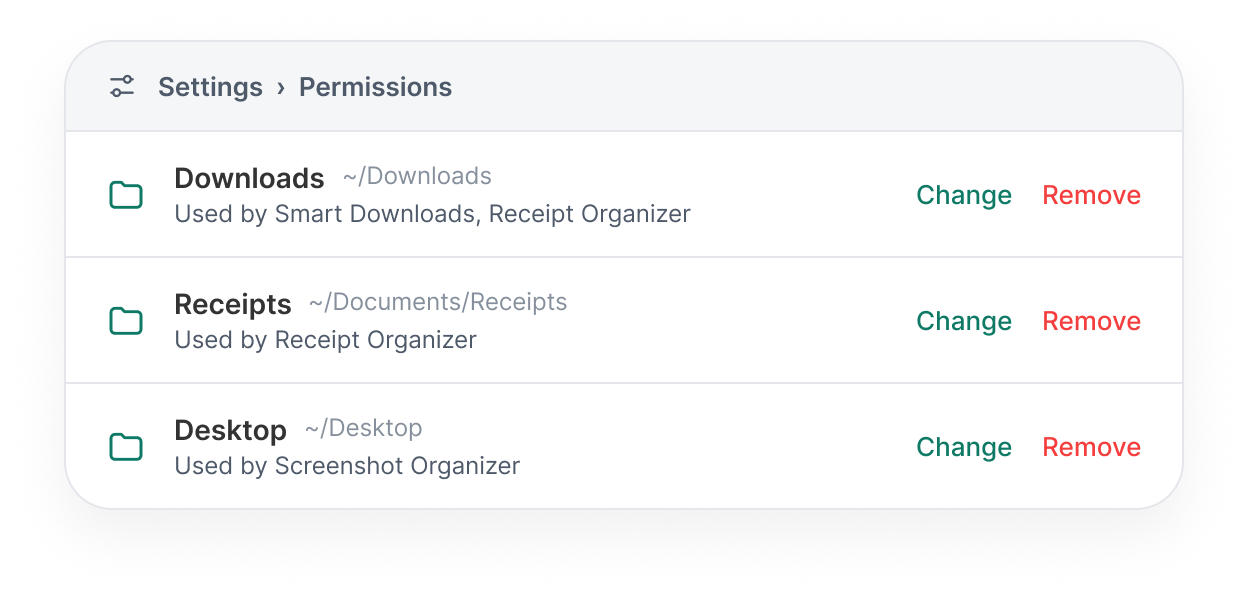
Remove access in SettingsRoutines that use the folder pause until you choose a new one. Files aren’t touched.
Folder moved or renamed?The routine pauses and tells you — it never guesses a new location.
On a Mac, revoke in macOS tooYou can also manage access in System Settings › Privacy & Security.